Settings & tips
Insta360 GO 3S: Transfer Footage to Your Computer
Three paths GO 3S owners actually use — plus a screenshot walkthrough for Wi‑Fi import on Mac when the cable stays home.
By Insta360 Camera Import team · Updated 2026-06-22
We ship the macOS Wi‑Fi import app on this site. Every Pod screenshot below is from our GO 3S field setup on Ventura and Sonoma. Windows build is in development. Reddit quotes link to real threads — not marketing copy.
The GO 3S is small enough to forget in a pocket and big enough to fill an SD card on a weekend ride. The awkward part is always the same: getting those clips onto a Mac or PC for Studio or Premiere. Insta360’s phone app handles a few files fine; a full card still sends people to Reddit asking for a direct computer path.
“Is there a way to directly transfer videos from the Insta360 GO 3S to a computer?”
Short answer: yes, but the official menu is split. USB from the Action Pod works when you have the cable. Wireless always involves the phone app unless you use a third-party Wi‑Fi tool on the desktop. Below is how each path works, then a step-by-step for Wi‑Fi import on Mac — the flow we test daily.
Three ways off the GO 3S
| Method | Cable? | Phone needed? | Best when |
|---|---|---|---|
| USB / U‑Disk from Action Pod | Yes | First-time USB password only | You have the official cable; want full-quality files fast |
| Insta360 app → phone → computer | No | Yes | Small batches; you already live in the app |
| Quick File Transfer + Wi‑Fi to Mac | No | Once for pairing / QFT | No cable; want files on disk without phone relay |
Our compare page breaks down speed and USB risk if you want numbers. This article stays on GO 3S mechanics.
USB from the Action Pod (official default)
Dock the GO 3S in the Action Pod, connect the official Type‑C cable to your Mac or PC, and open the drive. Copy from DCIM. Insta360’s GO 3S file-transfer manual covers U‑Disk mode and the USB password you set the first time — forget it and you reset through the mobile app (Me → Other Settings → Set USB Mode Password).
“For the past few days I've been connecting my Insta360 GO 3S into my Macbook via U-Disk mode to edit videos directly into the Insta360 Studio.”
One GO 3S-specific limit: Insta360 support has told users the camera does not transfer to phones or iPads over USB — only through the app. Plan on Wi‑Fi or a card reader if your workflow is tablet-first.
“Currently, GO 3S does not support transferring files to phones/iPads via a USB cable. We recommend using the Insta360 App for transfer.”
Phone relay (official wireless)
Camera joins the phone over Wi‑Fi; you export from the Insta360 app folder to the computer. On iPhone + Mac that is Finder → Files → Insta360 → DCIM. Works, but your phone storage becomes the middle hop — painful after a long 5.7K day.
Wi‑Fi direct to Mac (Quick File Transfer + desktop import)
This is the path behind the Reddit question. Turn on Quick File Transfer on the Pod so the camera exposes its Wi‑Fi hotspot, join that network from the Mac, then browse and download with a desktop tool. Insta360 Studio itself does not import over Wi‑Fi on Mac or Windows — their Studio docs say USB or files already on disk.
“Does Quick Share for file transfer works?”
Quick File Transfer does work, but the Pod must stay on the transfer screen and the camera Wi‑Fi must stay on. If import fails, check those two first before blaming the Mac app.
Part A — Action Pod setup (steps 1–5)
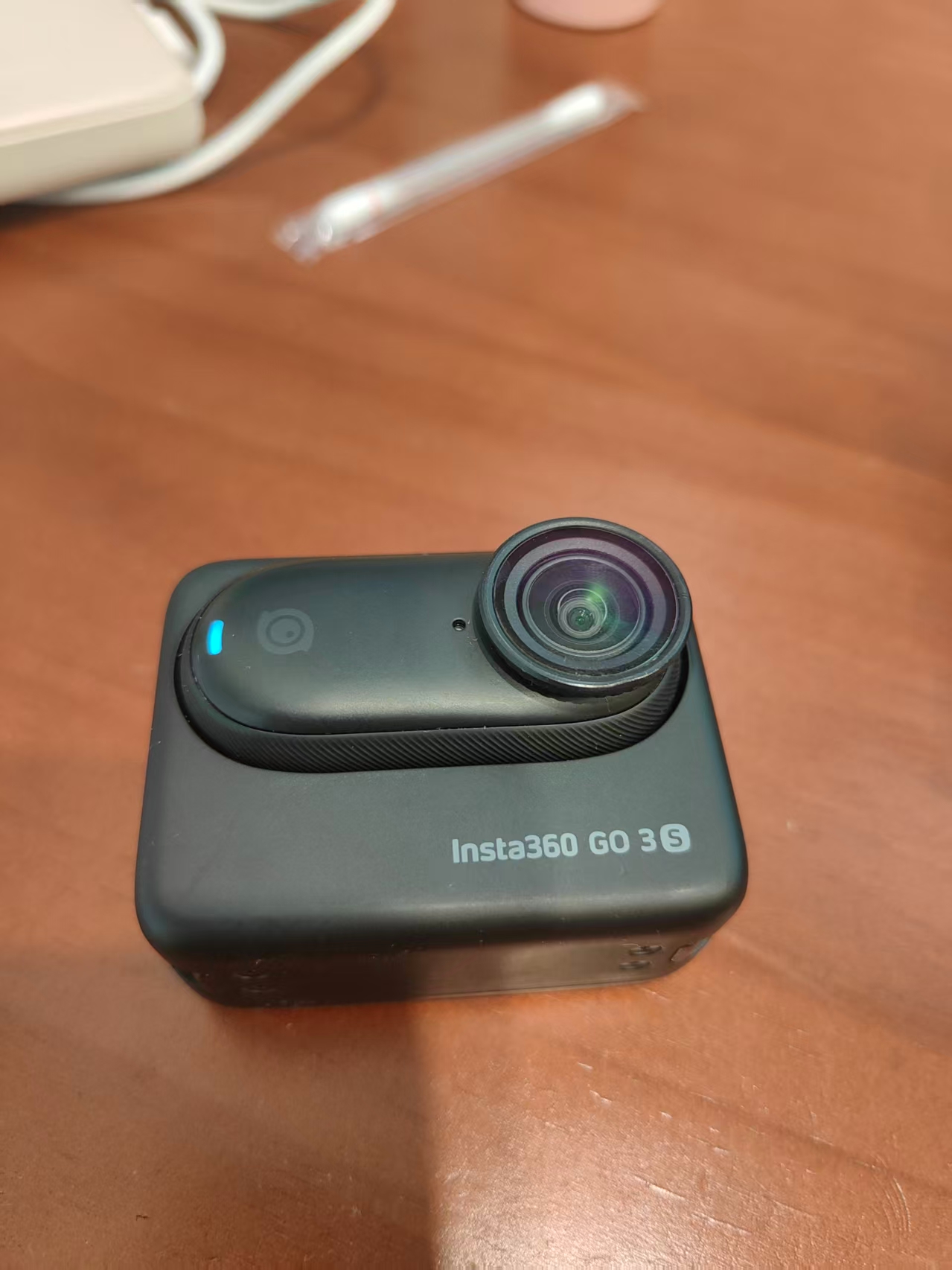
Insert the GO 3S module, power on until the Pod shows ready. Swipe down → Settings (gear) → Wi‑Fi settings → On. Open Wi‑Fi info and write down the network name (GO 3S xxxxxx.OSC) and password — you will need them on the Mac.
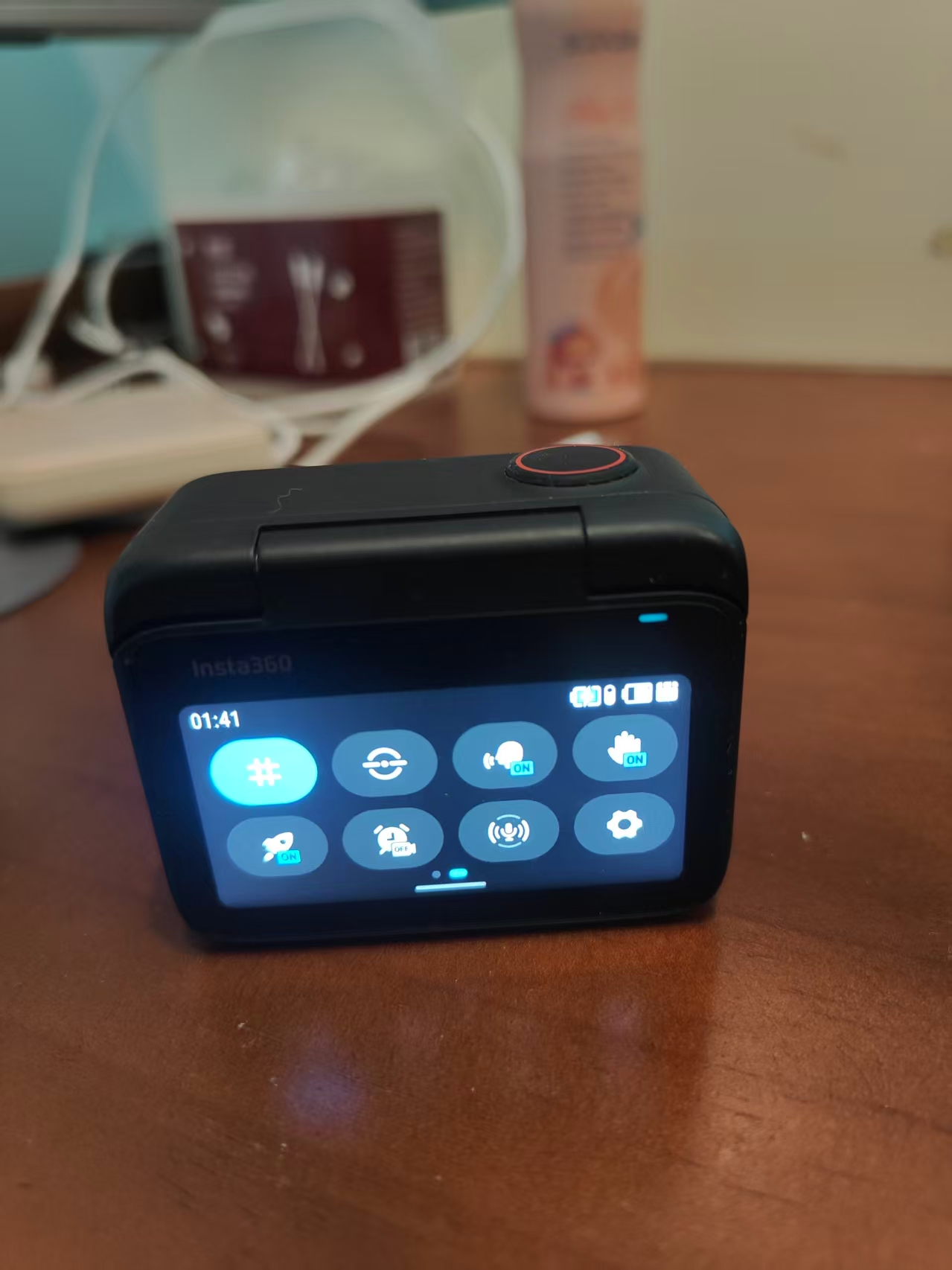
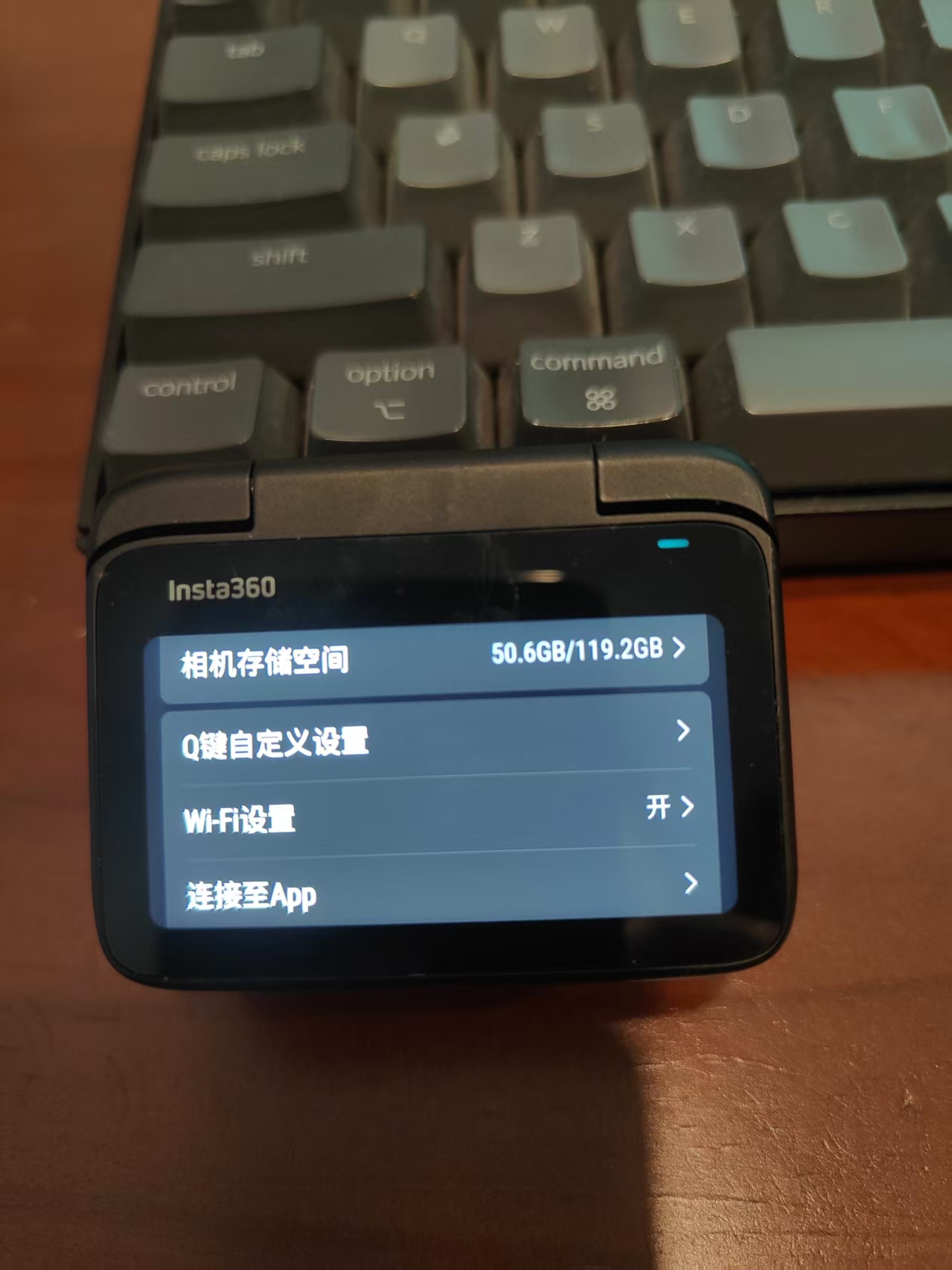
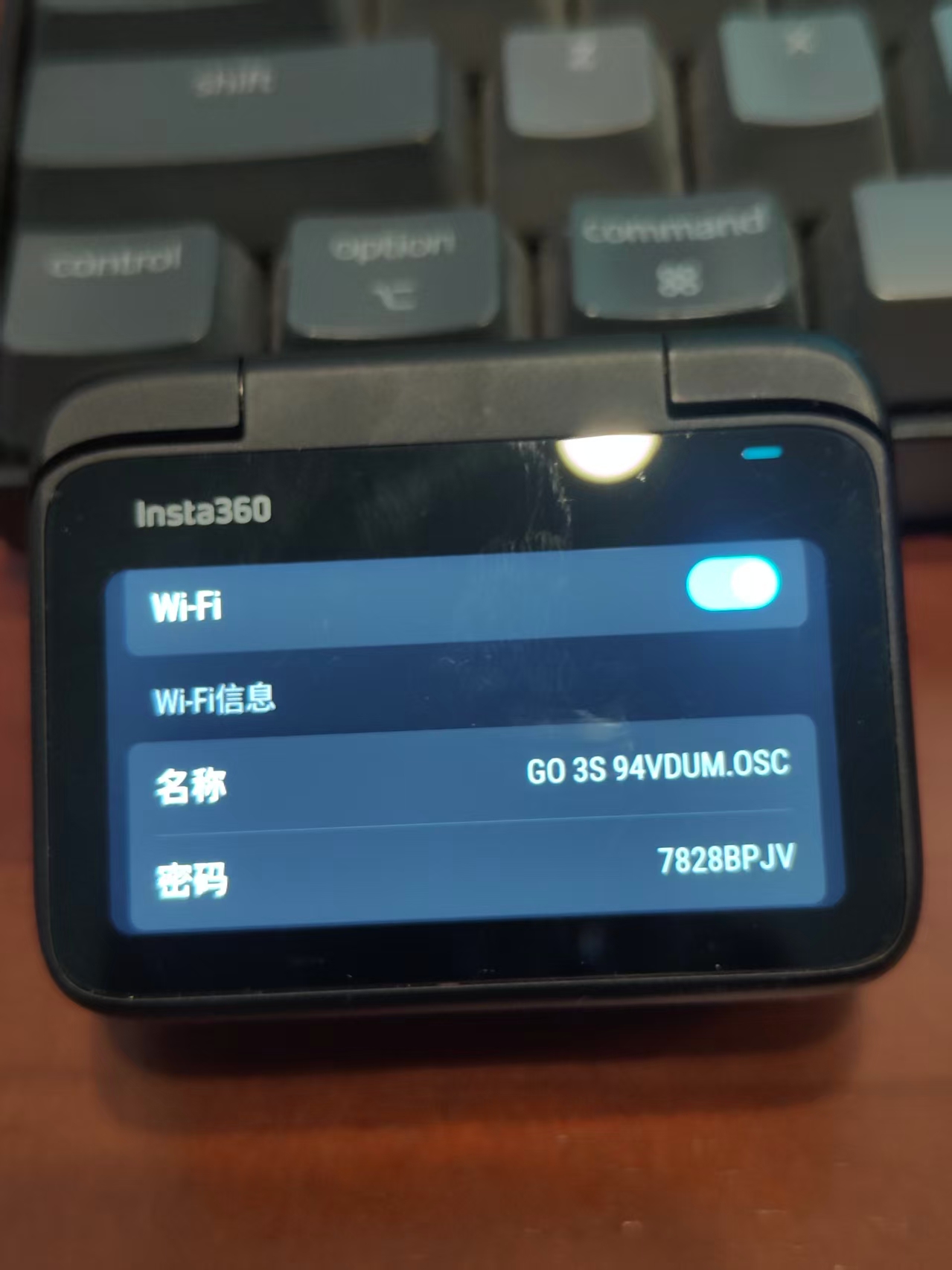
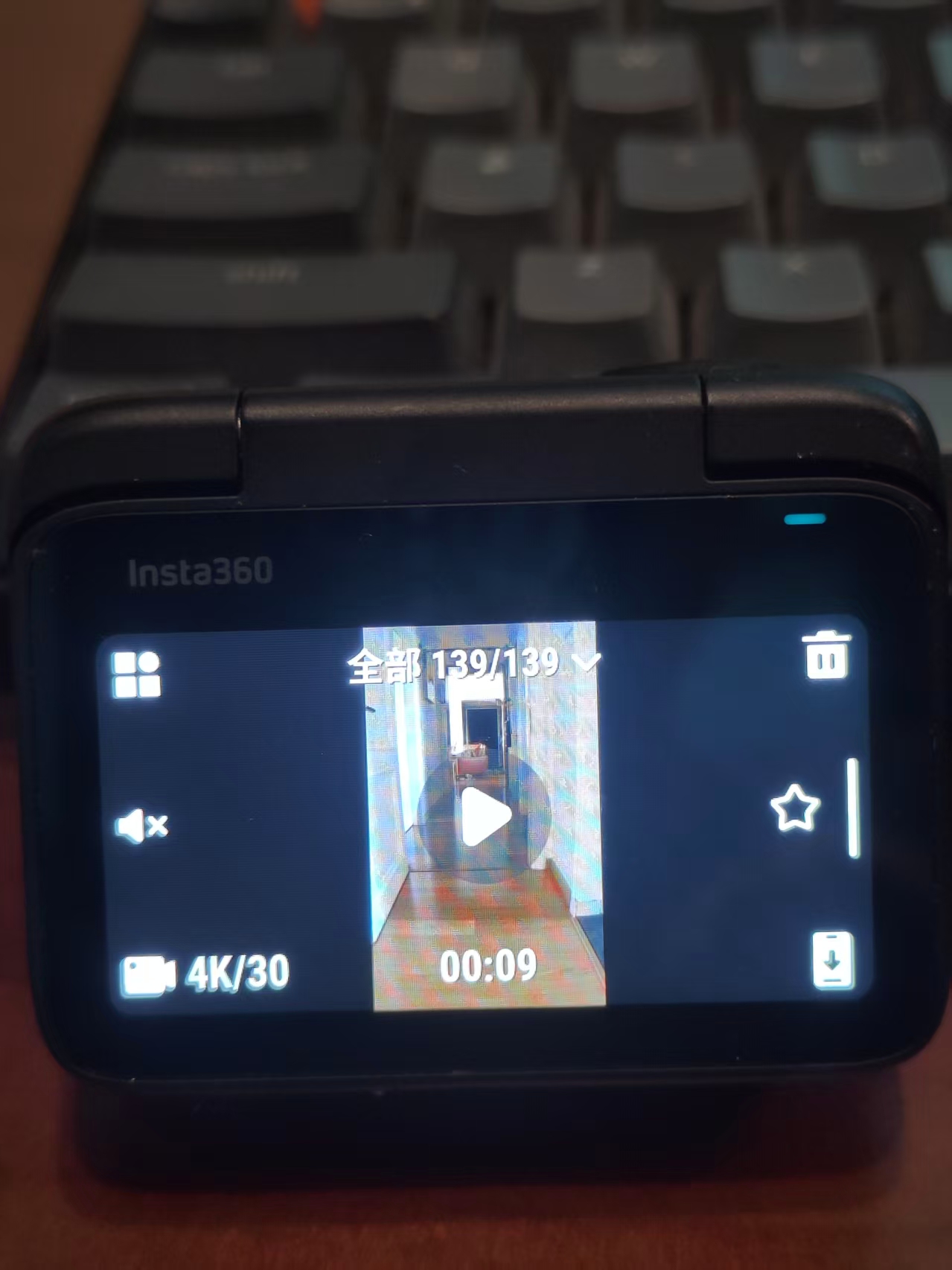
First time or if the Pod asks: pair GO 3S with the Insta360 phone app over Bluetooth, enable Quick File Transfer from the app, then you can quit the app and continue on Mac. Full screenshots live on our GO 3S setup guide page.
Part B — Mac import (steps 6–10)
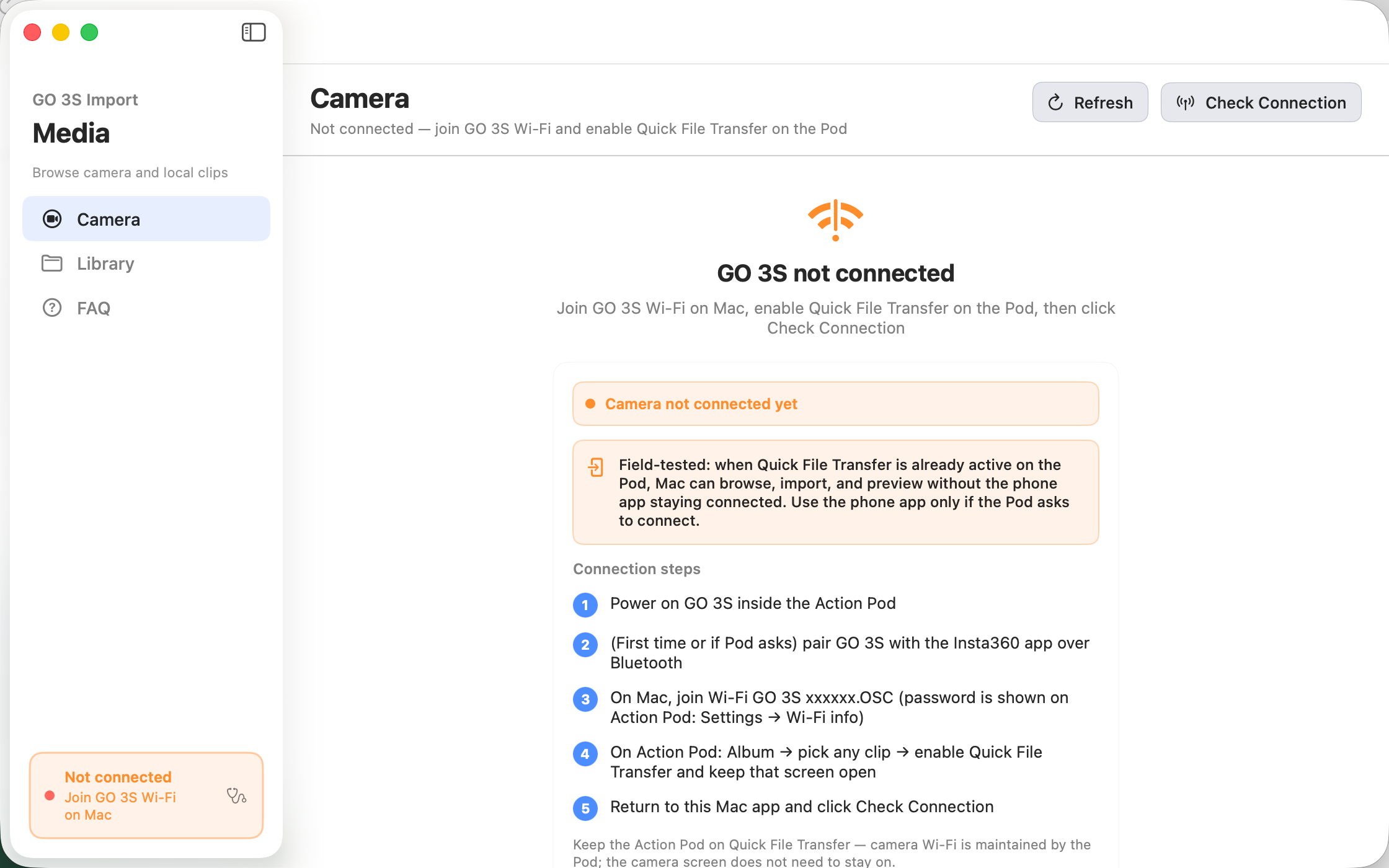
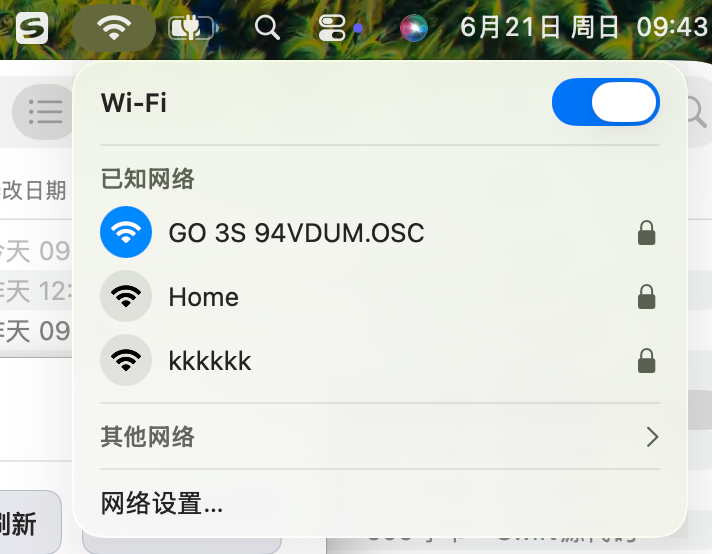
Launch the app → Check Connection. When the status shows camera connected, open the file list, preview with Space if you want, select clips, and Import Selected. Default folder: ~/Movies/Insta360. Large files resume if the link drops.
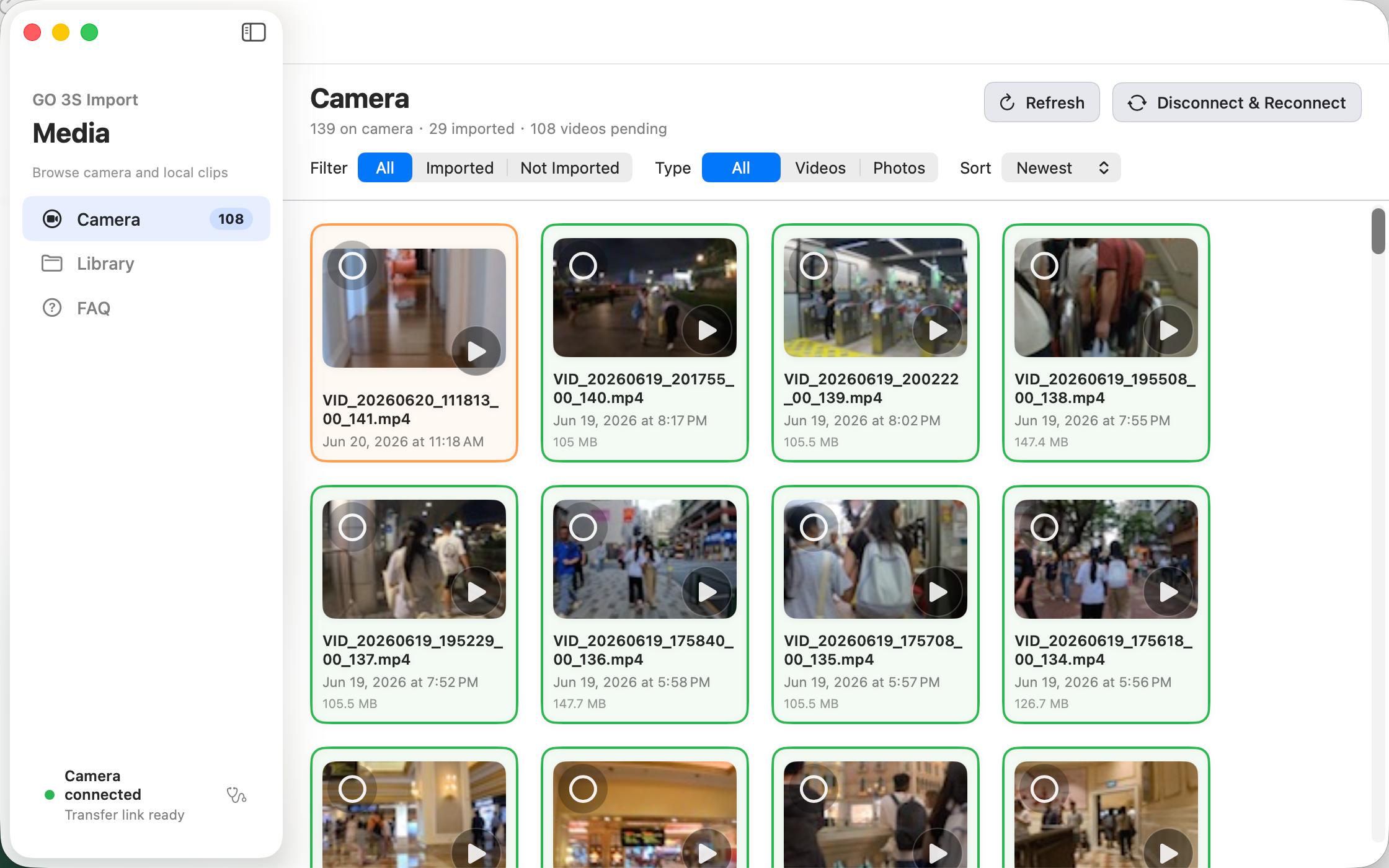
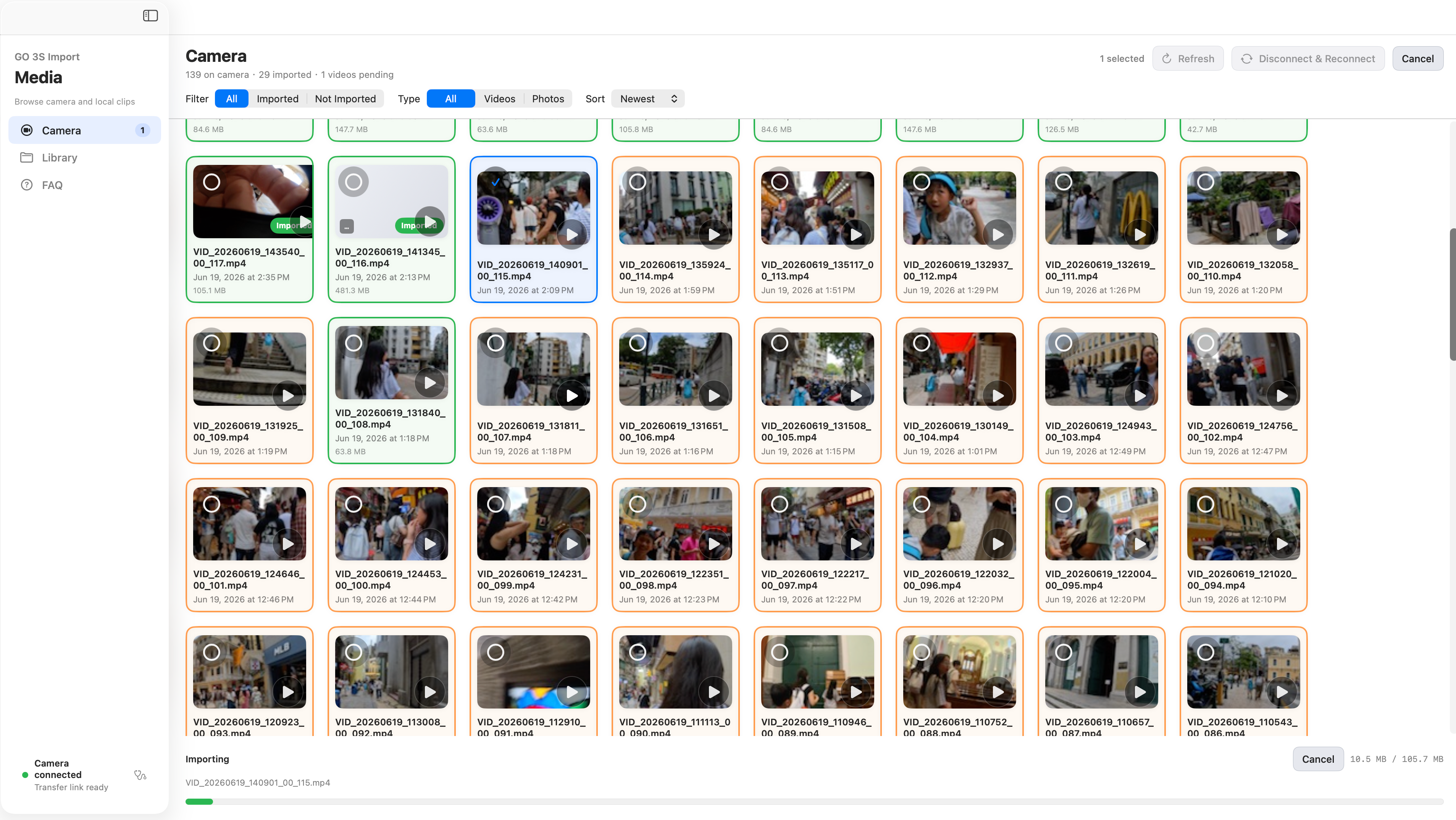
Insta360 Camera Import is unofficial — community reverse-engineering of the same Wi‑Fi file protocol the phone app uses. We maintain it openly; keep SD backups before you rely on any new workflow.
When import fails
- Pod left the Quick File Transfer screen — go back and stay there.
- Mac still on home Wi‑Fi — join the GO 3S xxxxxx.OSC network first.
- Never paired by phone — Bluetooth pair once in the Insta360 app, then retry QFT.
- USB password forgotten — only fixable from the phone app, not factory reset.
Mac vs Windows today
| Task | macOS | Windows |
|---|---|---|
| GO 3S USB from Pod | Yes | Yes |
| Insta360 Studio edit | Yes | Yes |
| Studio Wi‑Fi import | No | No |
| Phone app relay | Yes | Yes |
| Insta360 Camera Import | Available | Planned |
What I would do with a GO 3S
Cable in the bag → USB from the Pod or pull the microSD into a reader. Only posting phone reels → app Wi‑Fi is enough. Traveling light, need disk, tired of the phone hop → Quick File Transfer on the Pod, then Wi‑Fi import on Mac. Windows users: same Pod steps; desktop Wi‑Fi import is on our roadmap — USB or phone relay for now.
FAQ
- Can GO 3S transfer directly to a computer without the phone app?
- Not through Insta360’s official wireless flow — Quick File Transfer still needs the app for first pairing. On macOS, Insta360 Camera Import can connect the Mac to the GO 3S hotspot and download files once QFT is on. Unofficial; keep card backups.
- Does GO 3S support USB to iPhone or iPad?
- No — Insta360 support has stated GO 3S does not transfer to phones or iPads over USB. Use the app or a card reader.
- Is Wi‑Fi import faster than USB on GO 3S?
- Usually USB wins on speed. Wi‑Fi is for when the cable is missing or you already enabled Quick File Transfer.
- Where are imported files saved on Mac?
- Insta360 Camera Import defaults to ~/Movies/Insta360. You can change the path in app settings.