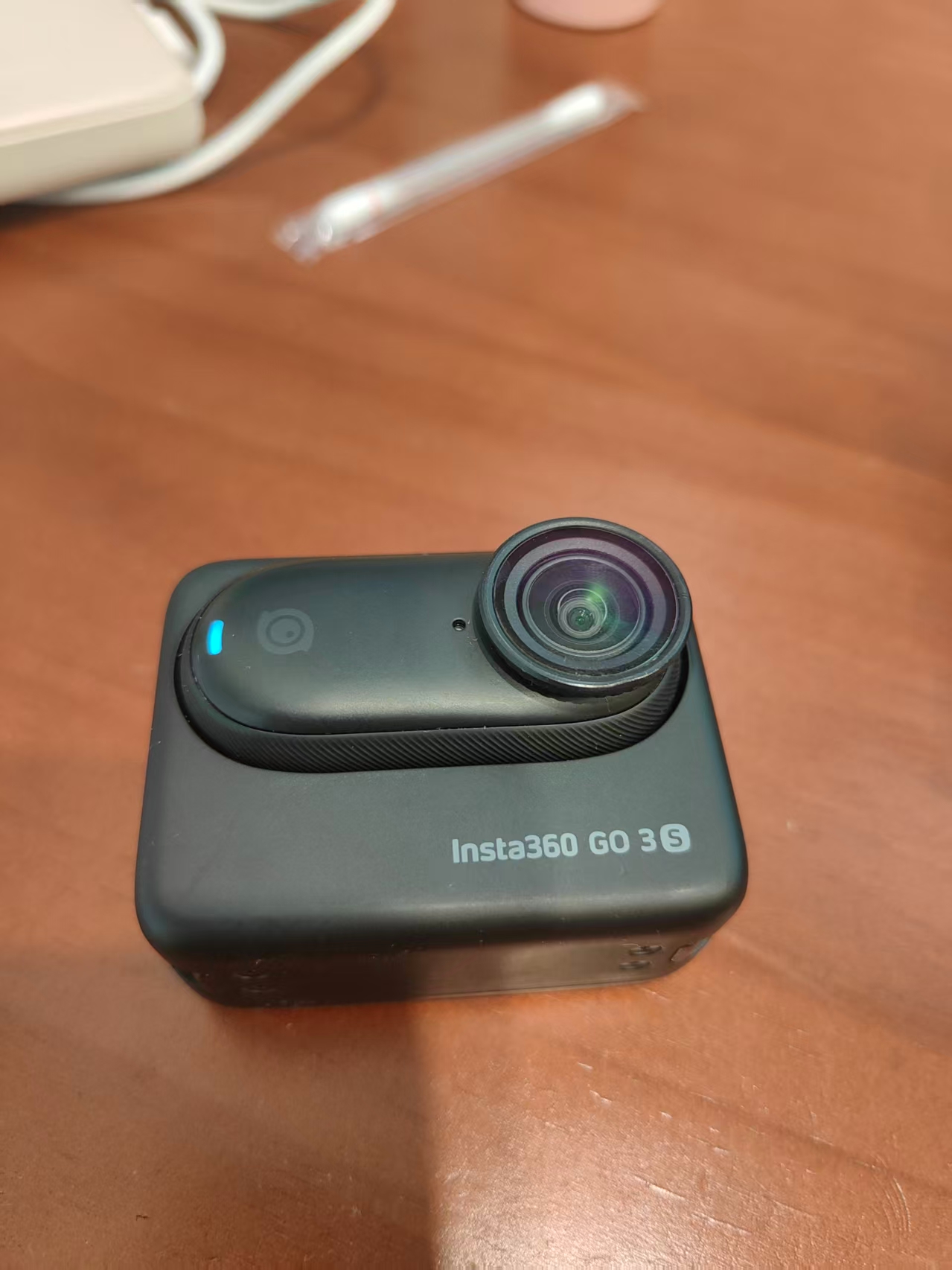
Insert GO 3/3S into Pod and power on
Dock the camera module in the Action Pod. A blue indicator means ready. Keep it in the Pod during import.
10 steps with screenshots · Action Pod → Mac Wi‑Fi → browse & import
Dock the camera module in the Action Pod. A blue indicator means ready. Keep it in the Pod during import.
Swipe down on the Pod screen for quick menu, then tap the gear icon at bottom-right.
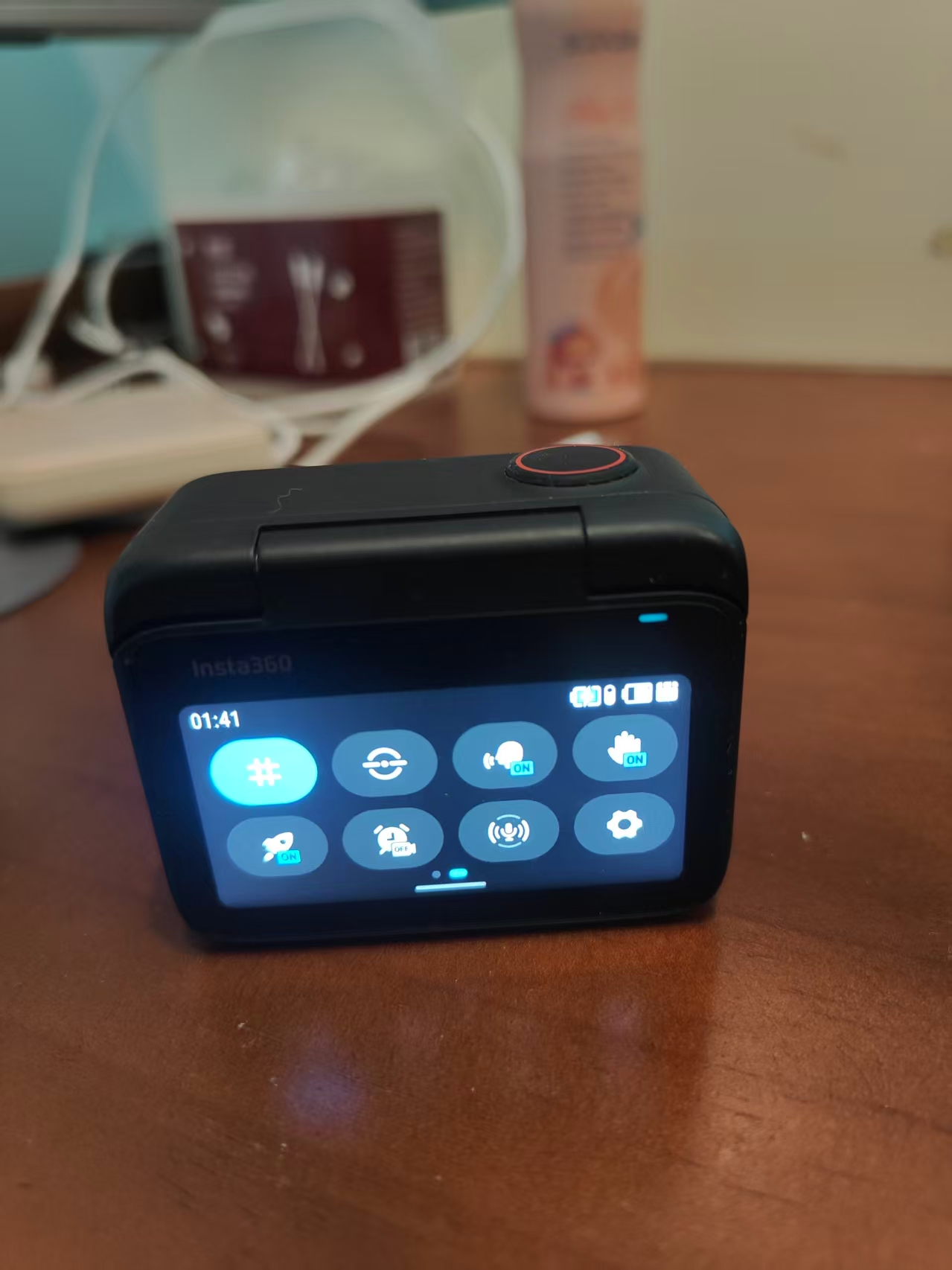
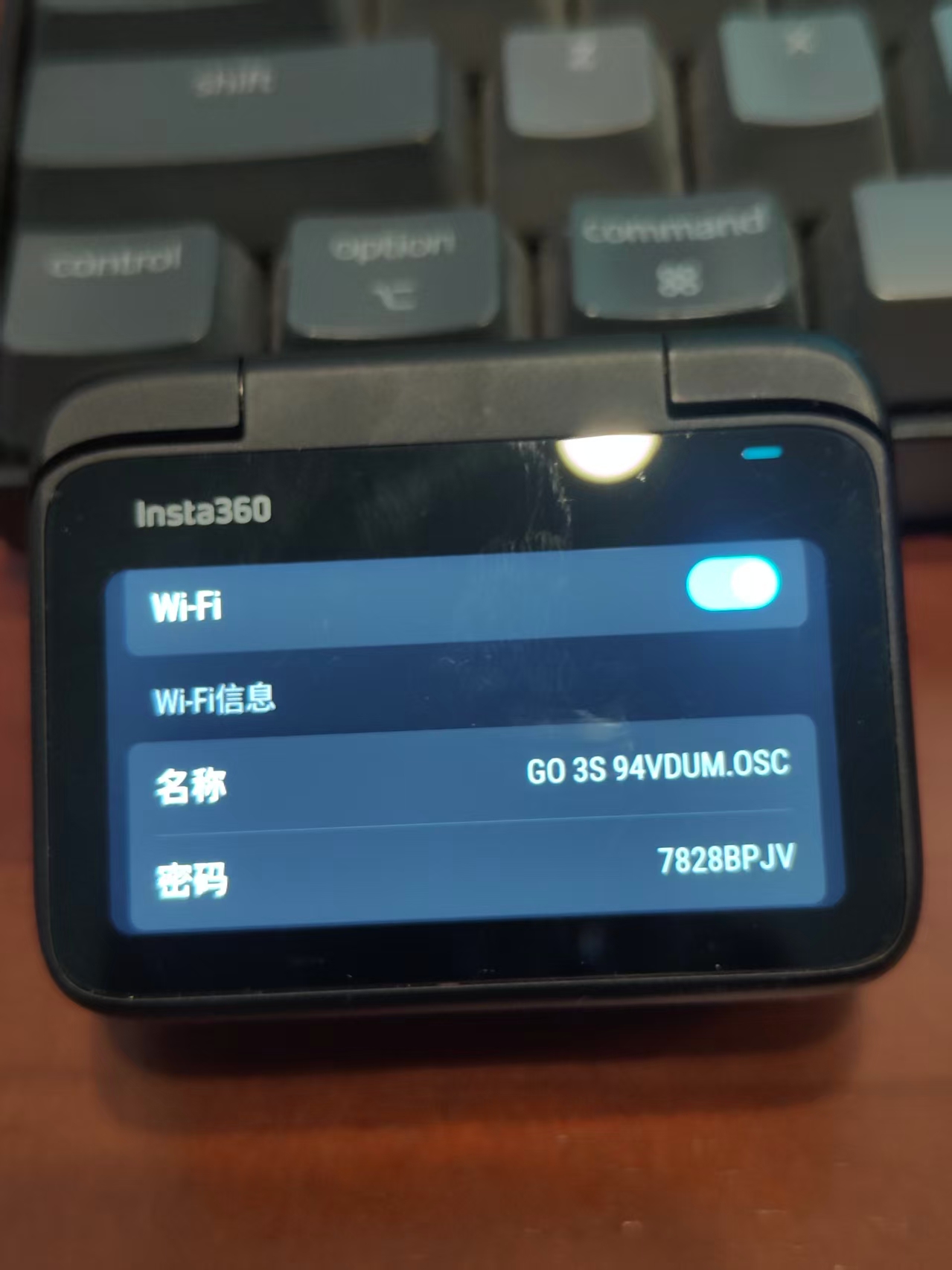
Settings → Wi‑Fi settings. The toggle should show On.
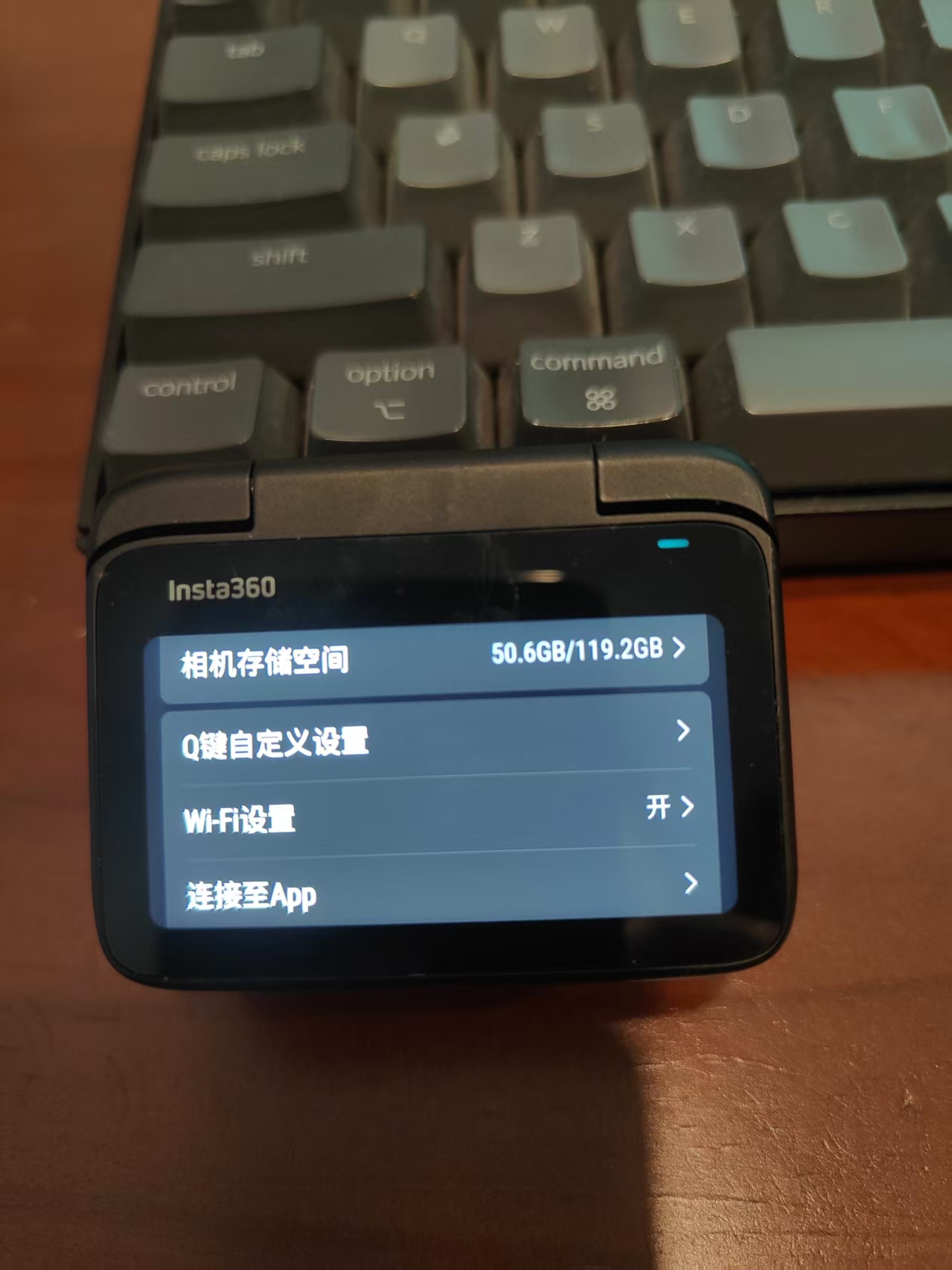
On Wi‑Fi info page, record the network name (e.g. GO 3S xxxxxx.OSC) and password shown on Pod.
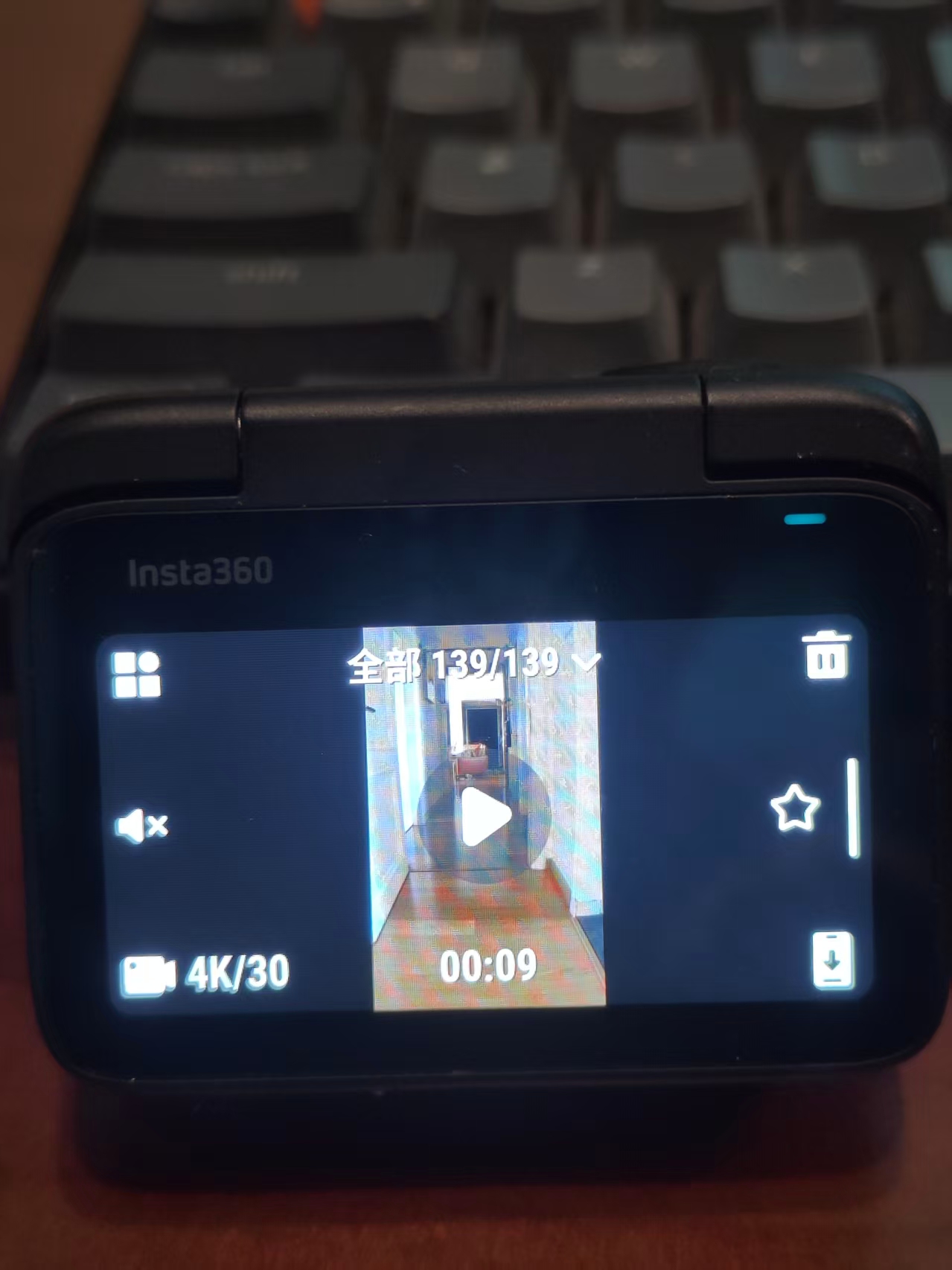
Album → open any clip preview → tap the file transfer icon at bottom-right.
Stay on this screen during import. Do not return to the main menu.
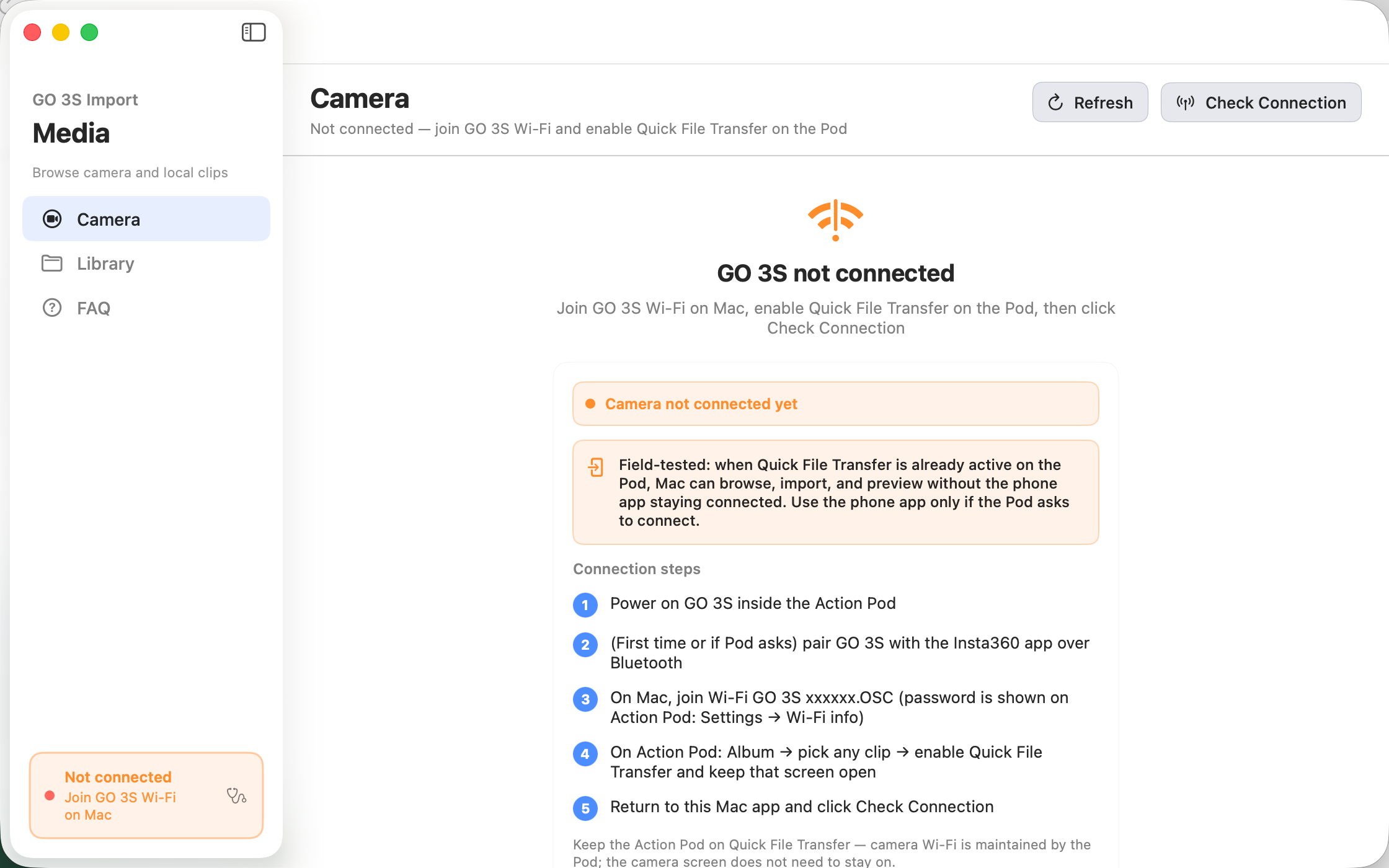
Launch the app on Mac. Tap Check Connection to verify when not yet connected.
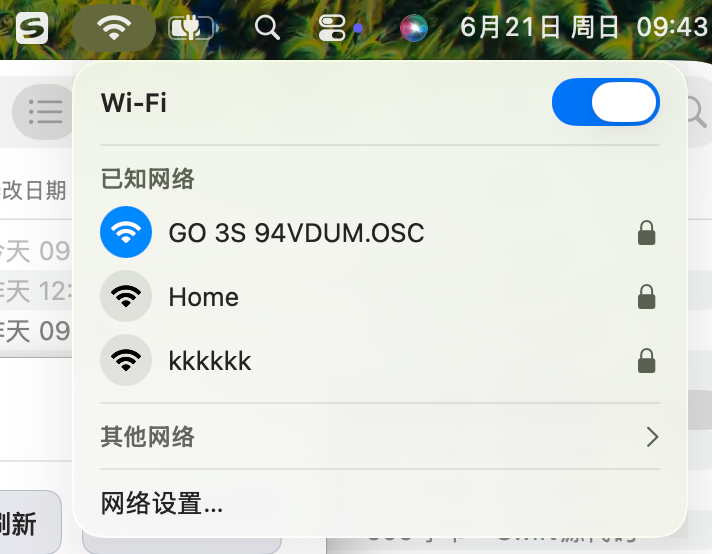
Menu bar Wi‑Fi → select GO 3S network → enter password. App shows Camera connected when ready.
While on camera Wi‑Fi, Mac has no internet. Switch back after import.
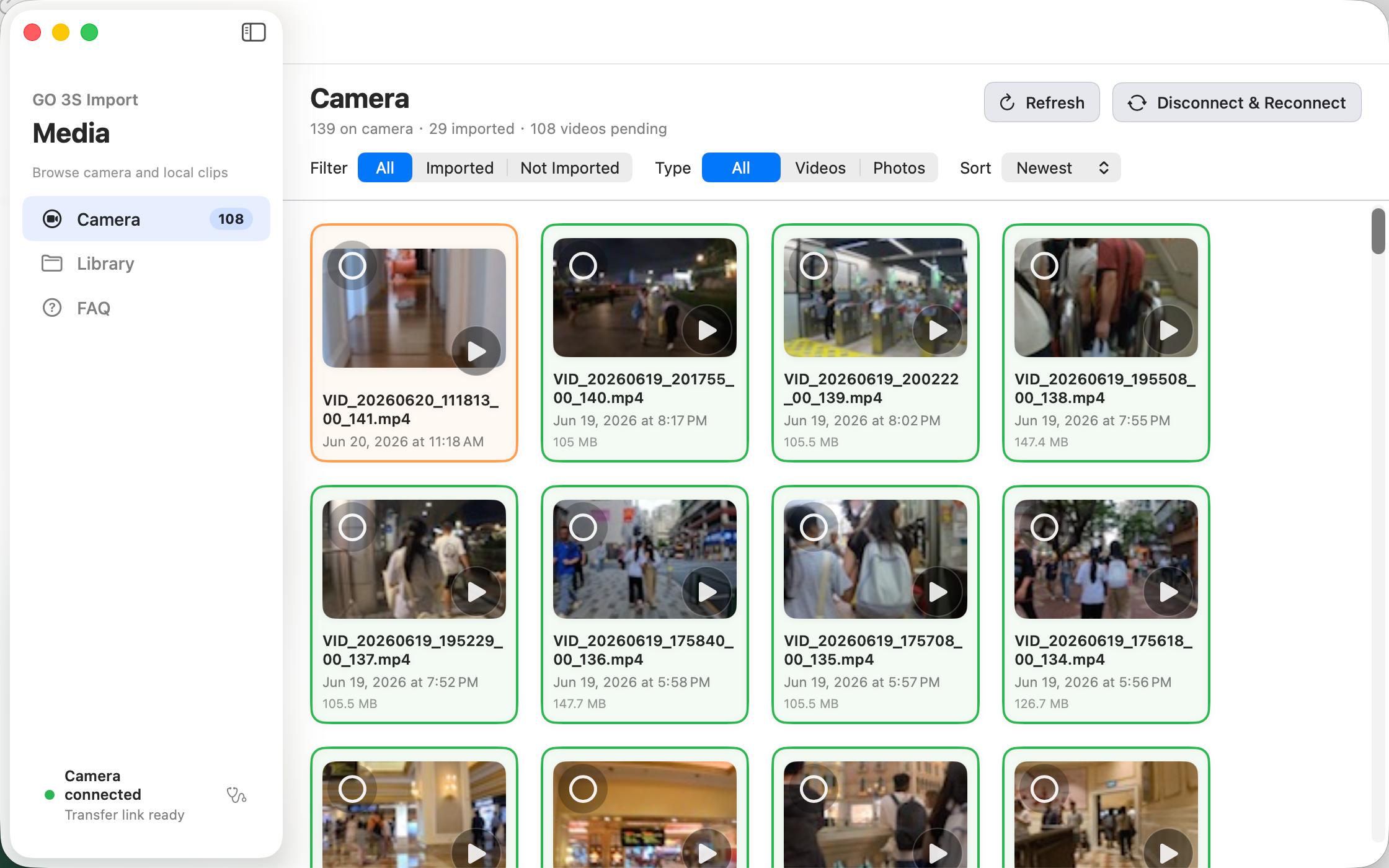
Camera tab lists all clips. Filter by import status or type, sort by date or size. Green border = already imported.
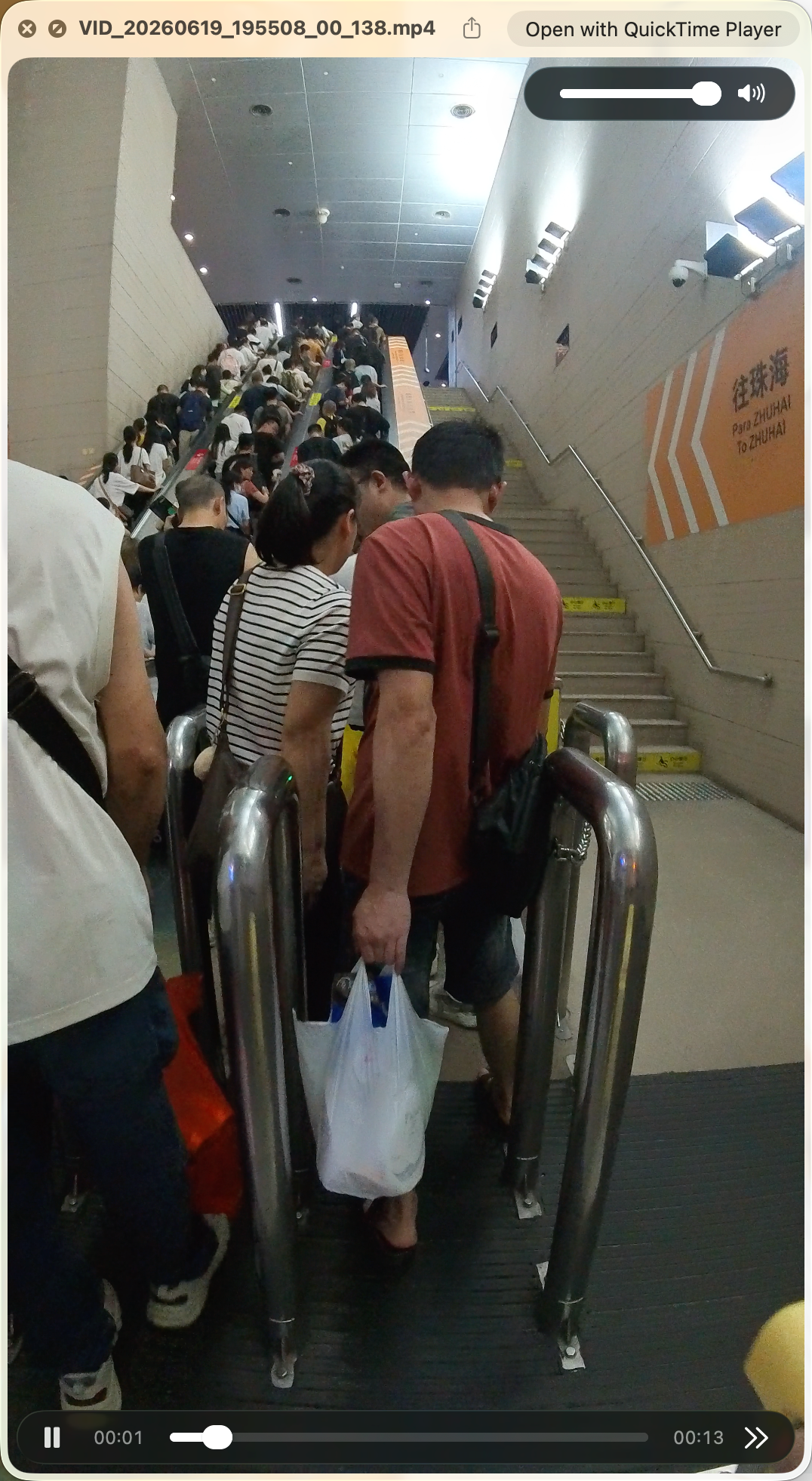
Tap preview on a card or press Space when selected. Videos stream; photos use Quick Look.
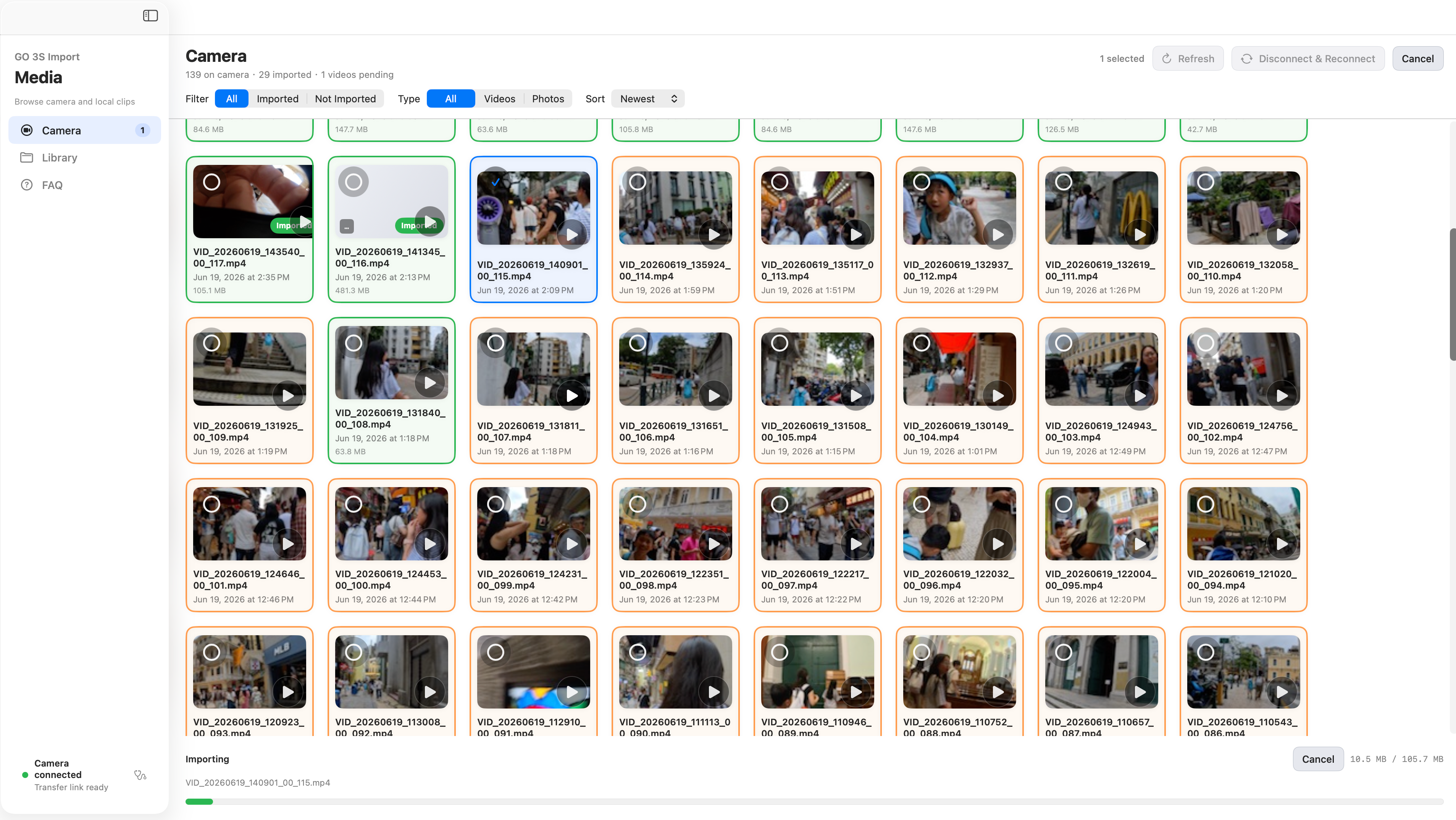
Check clips → Import Selected → watch progress bar. Default save path: ~/Movies/Insta360.
Large files support resume. View completed imports in Media Library.
Usually not needed
Needed first in these cases
When needed: open Insta360 App → Bluetooth connect → enable Quick File Transfer → once Pod is in transfer mode, you can quit the app and use Mac.